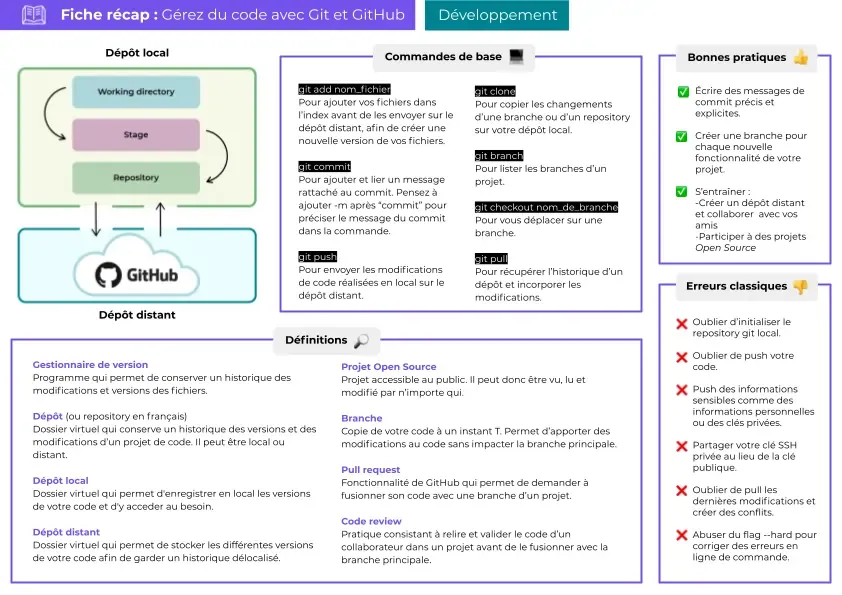
This tool has three main functions:
- Return to a previous version of your code in case of problems
- Track the evolution of your code step by step
- Work collaboratively without risking deletion of other contributors’ changes
Note (Variants)
There are several alternatives to Github, the most well-known being Gitlab which is a fork of Github that adds improvements and offers the possibility of self-hosting. The operation remains similar.
How it works
Git works similarly to incremental backup, where a set of folders/files will be added to the project. Subsequently, a complete history of project changes will be available - these changes can be ignored, added, deleted or merged.
Git offers a branch system, which allows for example, to develop content on the main branch without altering it. This is because Git will have previously made a kind of secondary clone of the branch
(using the command git checkout -b mybranch).
-
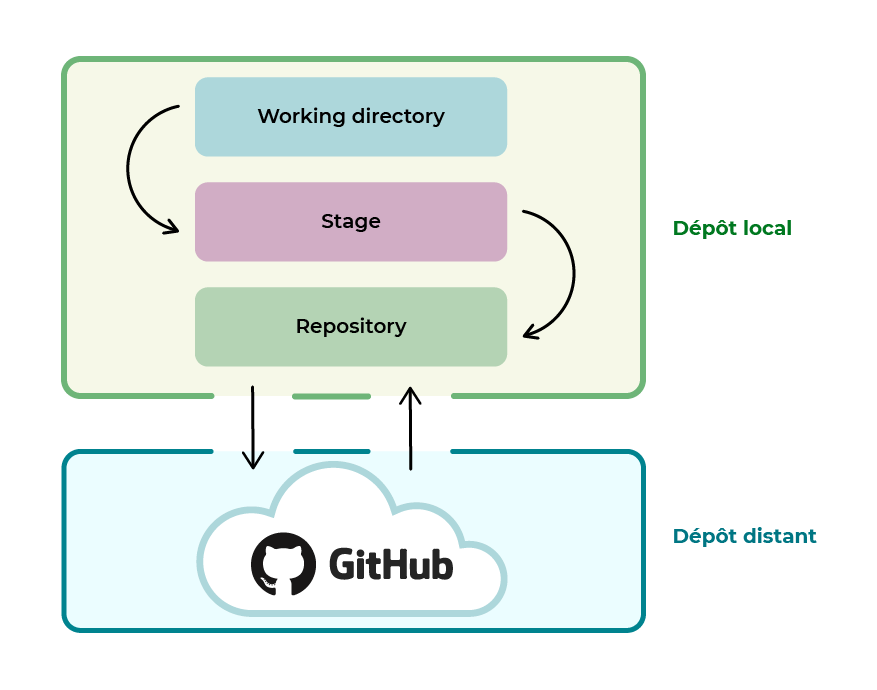
The Working directory corresponds to the project folder on the machine.
-
The Stage or Index is the intermediate stage representing all modified files that have been “staged”. !ref icon=“rocket” text=“How to stage a folder/file”
-
The repository is the entire project with its commits.
Local repository
- A repository is the set of folders/files that make up a Git-initiated project.
- In online documentation or professional settings, we often talk about repositories.
- The local repository is stored directly on the machine.
Remote repository
- The remote repository is hosted on a remote server 🧠
Initialize a repository
:icon-arrow-up: Go to the desired directory, for example: cd ~/myproject
tip: Using 'master' as the name of the initial branch. This default branch nametip: is subject to change. To configure the initial branch name for all newtip: repositories, and suppress this warning, run:tip:tip: git config --global init.defaultBranch <name>tip:tip: Names commonly chosen instead of 'master' are 'main', 'trunk' andtip: 'development'. The newly created branch can be renamed with:tip:tip: git branch -m <name>Empty Git repository initialized in /home/contact/contactit.fr/.git/Cloning into 'myproject.git'...remote: Enumerating objects: 11779, done.remote: Counting objects: 100% (82/82), done.remote: Compressing objects: 100% (66/66), done.remote: Total 11779 (delta 52), reused 33 (delta 16), pack-reused 11697Receiving objects: 100% (11779/11779), 23.50 MiB | 11.34 MiB/s, done.Resolving deltas: 100% (7047/7047), done.The git clone command will directly import the project and its source files into a folder with its name.
- It may be necessary to update the repository following a change made by another project contributor, use the command:
git pull origin mybranchNote
“Pull” and “fetch” allow you to request a repository
Verification
total 12drwxr-xr-x 3 contact contact 4096 Sept. 5 15:26 .drwxr-x--- 14 contact contact 4096 Sept. 5 15:23 ..drwxrwxr-x 7 contact contact 4096 Sept. 5 15:26 .gitThe .git repository is present in the directory in the form of a hidden folder.
Adding folders/files to repository:
The git add command allows you to index files to Git.
- Once the folders/files are indexed, it is possible to make a commit after modifying an element.
Some examples:
git add READMEadds theREADMEfilegit add .adds all folders and files in the directory where.gitis located.
.gitignore
.gitignoreis a file that lists the folders/files ignored by Git.- It follows a defined syntax.
Some examples:
*.logignores all files with the.logextension/folderignores the folder recursively.
:icon-unverified: More information is available here
Note
git status allows you to see the changes of folders/files compared to the last saved version (commit).
Commits
A “commit” is a version of the previously indexed folders/files, which is different from the subsequent version.
- The
git commitcommand allows you to validate the changes made to the indexed or “staged” files by Git.
Note
These changes are applied from the “working directory” and are no longer in “Stage”, they are moved to the “repository”.
Tip
It is recommended to name commits with a different name for each modification step.
git commit -m step1 allows you to name (indicate concisely the content of the commit, max. 60 characters).
git commit --amend -m "step2" allows you to change the name of an existing commit!
Installation of Git
[sudo] Password for contact:Reading package lists... DoneBuilding dependency tree... DoneReading state information... Donegit is already the newest version (1:2.34.1-1ubuntu1.4).git set as "manually installed"0 upgraded, 0 newly installed, 0 to remove and 0 not upgraded.1 partially installed or removed.After this operation, 0 B of additional disk space will be used.Do you want to continue? [Y/n]- Validate the installation:
Yor add the-yoption at the end of the command.
Identity
Identity in Git is simply your name and your email address.
These two pieces of information are necessary for Git validation:
-
git config --global user.name "John Doe" -
git config --global user.email contact@contactit.fr
Note
Thanks to the --global option, you will only need to do this once.
Danger
If you want to change your username for a specific project, you will need to pass this line again without the --global option.
- To check that your settings have been taken into account, simply pass the command:
git config --list
Tip
It is recommended to activate colors for better visibility:
git config --global color.diff autogit config --global color.status autogit config --global color.branch autoPush the repository
Add the remote origin
git remote add origin https://github.com/username/project/myproject.gitNote
git remote add name https://github.com/username/project/myproject.gitallows you to shorten the name (url > “name”) to call the repository later.Select the branch
git branch -M mybranchPush the repository
git push -u origin mybranch
Branches
-
A branch is a copy of the project at a given time
T, all modifications made to it will only affect that one.
This allows you to have multiple states of the project at the same time. -
The main branch is the
mainbranch (previously calledmasterbefore October 2020). This branch is often the production branch, therefore stable, of the project. -
There may be other branch names like:
devorstaging, these are non-stable development branches, tests and verifications will be made on them once the development is finished. -
If the result is conclusive, it may be possible to merge these branches to the
mainormasterbranch.
Branches are often used to recreate a test / preproduction and production environment.
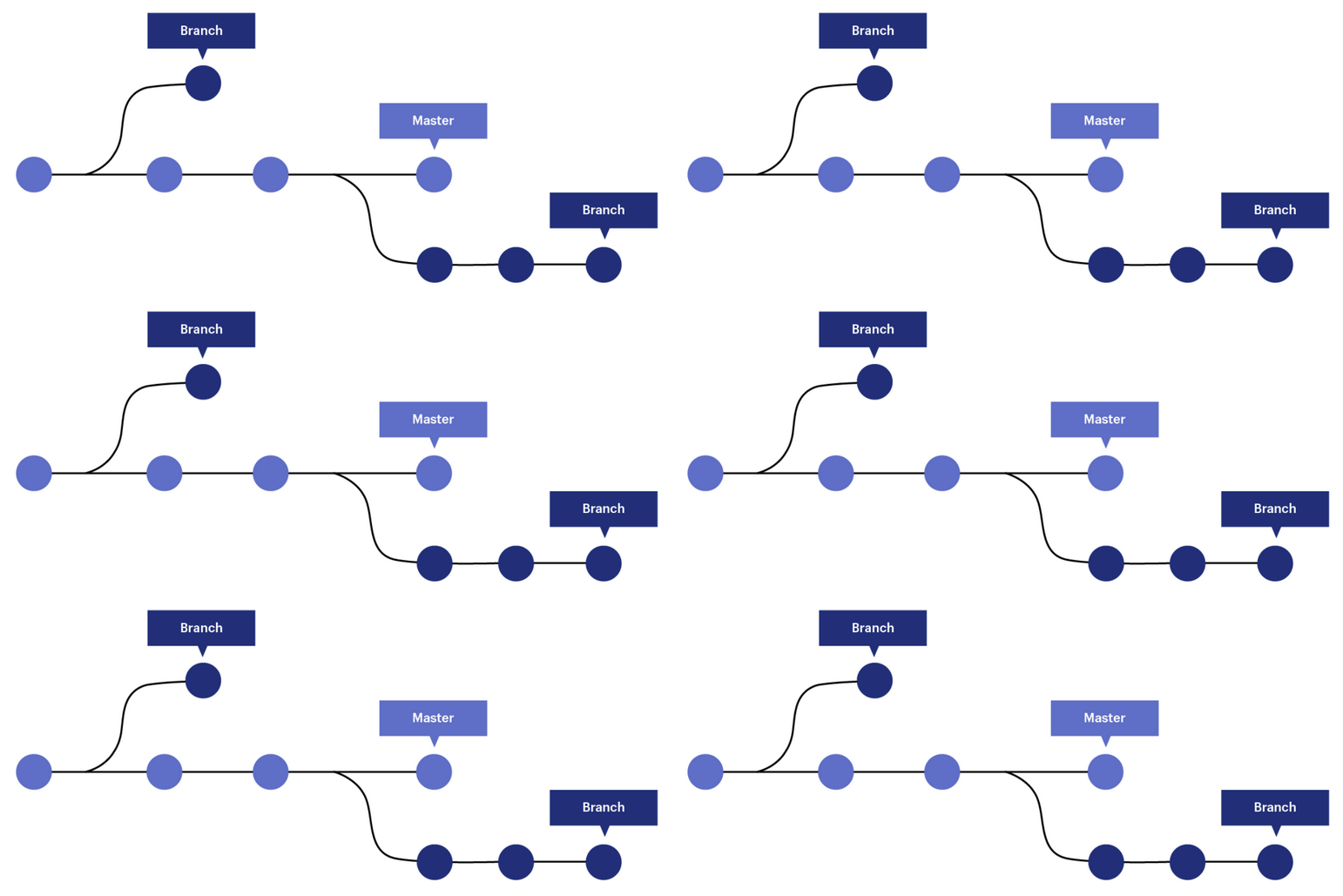
ℹ️ Git can be compared to a tree:
-
The trunk of the tree is the main branch of the project (most of the time: main or master)
-
The branches are elements that come from the trunk but go in different directions
-
The leaves are one on top of the other, more or less numerous and fall or remain on the branches like commits.
-
Conclusion: in winter there are more commits 😉
-
The
git branchcommand allows you to list the branches of the repository:
list* master- Here there are two branches: list and master now main.
The*indicates that I am currently in the master branch.
Note
The -d option deletes a branch (git branch -d mybranch)
The -b option creates a new branch (git checkout -b mybranch)
- The
git checkout mybranchcommand allows you to change branches:
Switched to branch 'mybranch'- It is possible to create a branch from a commit with one of the following commands:
git checkout -b mynewbranch <commit_sha>Tip
Note that git checkout <sha> also allows you to return to a commit.
- To get the
sha(hash) of the commit, we can use the command:
* 5aaf865 Deletion of README* 6746dbc Adding test text* 931dc0f Creation of READMEThe sha is made up of the hexadecimal characters after the ”*” :icon-arrow-right: 931dc0f, for example.
Git stash
-
The
git stashcommand allows you to put a commit aside so that the current branch becomes clean, therefore without data in the stage area. This situation is suitable when a commit has not been made and the modifications are still in the stage. -
In practice, the
git statuscommand returns that there are several changes (in the stage area) that have not been committed. -
Stashallows you to put them aside, to be able to insert them into another branch, which can be useful when you have made a mistake in the branch! -
After executing the
git stashcommand if you run thegit statuscommand again, it returns that the working directory is clean (stage empty). -
Now I can go to a new branch or an existing one before inserting the changes made:
git branch mynewbranchgit checkout mynewbranch* mynewbranchmastergit stash applyGit reset
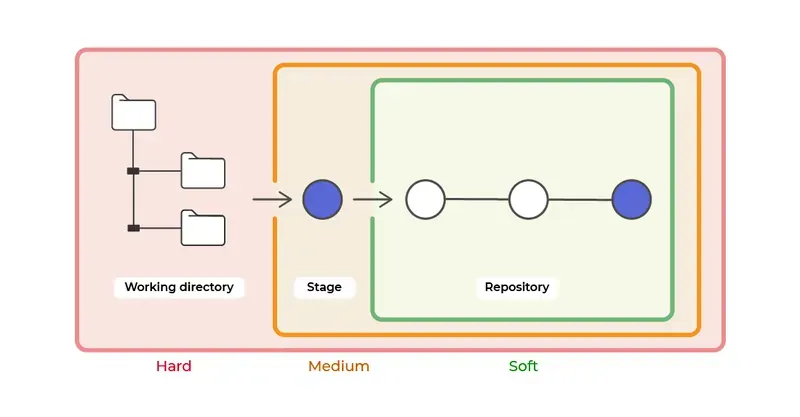
- Git reset allows you to undo changes in three different ways:
soft,mixedandhard
Delete the last commit
- First, look at the logs and therefore the last commit made and its identifier:
ca83a6dff817ec66f443420071545390a954664949 Author: contact<contactit[.]yarka(at)slmail.me> Date: Mon Mar 19 21:52:11 2022 -0700-
Note the identifier:
ca83a6dff817ec66f443420071545390a954664949if you need to assign it to another branch after deleting it. -
Now I can delete the last commit with the command:
git reset --hard HEAD^Github authentication
Github relies on authentication with SSH, therefore a pair of keys.
Generate an SSH key pair
ssh-keygen -t ed25519 Generating public/private ed25519 key pair.Enter file in which to save the key (/home/contact/.ssh/id_ed25519):Created directory '/home/contact/.ssh'.Enter passphrase (empty for no passphrase):Enter same passphrase again:Your identification has been saved in /home/contact/.ssh/id_ed25519Your public key has been saved in /home/contact/.ssh/id_ed25519.pubThe key fingerprint is:SHA256:myhash contact@mydomainThe key's randomart image is:+--[ED25519 256]--+|%@+. ||EBCVB. ||+=Bo. ||+.o* . ||oo..o . S S ||=+oo o ||B++ o . . ||+=.. o . ||o. . . |+----[SHA256]-----+Tip
ed25519is the current recommended standard in terms of security, RSA is compatible with more systems (but less secure (-4096 minimum)).Get the public key
cat ~/.ssh/id_ed25519.pub ssh-ed25519 AAAAC3NzaC1lZDI1NTE5AAAAKC91uWop9DhfNh23i6u0yUlhEkGv0IOQKzhU5ltKBkAG contact@contactit.frAdd the key to GitHub
Go to
Settings > SSH and GPG keys, in the title section put any name and in the key section paste your public key, then validate withAdd SSH key.
Summary of Git/Github