Danger (Please don't use the root account)
If you configure your server directly as root, don’t forget to remove sudo from each command.
If you set a password for the root account, the sudo command won’t be accepted.
Connect directly as root to execute commands.
You can also reinstall your system leaving the root password empty during installation.
sudo will install and work properly.
Installation of dependencies
sudo apt-get update && sudo apt-get install \ apt-transport-https \ ca-certificates \ curl \ gnupg \ lsb-releaseAdd the official GPG key
curl -fsSL https://download.docker.com/linux/debian/gpg | sudo gpg --dearmor -o /usr/share/keyrings/docker-archive-keyring.gpgAdd the stable repo
echo \ "deb [arch=$(dpkg --print-architecture) signed-by=/usr/share/keyrings/docker-archive-keyring.gpg] https://download.docker.com/linux/debian \ $(lsb_release -cs) stable" | sudo tee /etc/apt/sources.list.d/docker.list > /dev/nullInstall Docker Engine
sudo apt-get update && sudo apt-get install docker-ce docker-ce-cli containerd.ioO To validate the intervention requests during installation.
Verify our docker installation
sudo docker run hello-worldHello from Docker!This message shows that your installation appears to be working correctly.
To generate this message, Docker took the following steps: 1. The Docker client contacted the Docker daemon. 2. The Docker daemon pulled the "hello-world" image from the Docker Hub. (amd64) 3. The Docker daemon created a new container from that image which runs the executable that produces the output you are currently reading. 4. The Docker daemon streamed that output to the Docker client, which sent it to your terminal.
To try something more ambitious, you can run an Ubuntu container with: $ docker run -it ubuntu bash
Share images, automate workflows, and more with a free Docker ID: https://hub.docker.com/
For more examples and ideas, visit: https://docs.docker.com/get-started/Tip
Your installation is successful!
Create an Apache Container
As an example, we will create an Apache container
docker run -d --name docker-apache -v /var/www/:/usr/local/apache2/htdocs/ -p 3000:80 httpdLet’s break down the command above:
docker run allows you to launch a container or install it if it doesn’t exist
-d detaches from the container
--name CONTAINER_NAME
-v for “Volume”, path on machine
-p To specify local_port (http://MACHINE_IP)httpd the name of the Apache image, could be nginx in case of a nginx installation.
The run command will apply all options to the service installation.
Display Docker Containers
docker psdocker ps displays the active containers.
docker -adocker ps -a displays all containers.
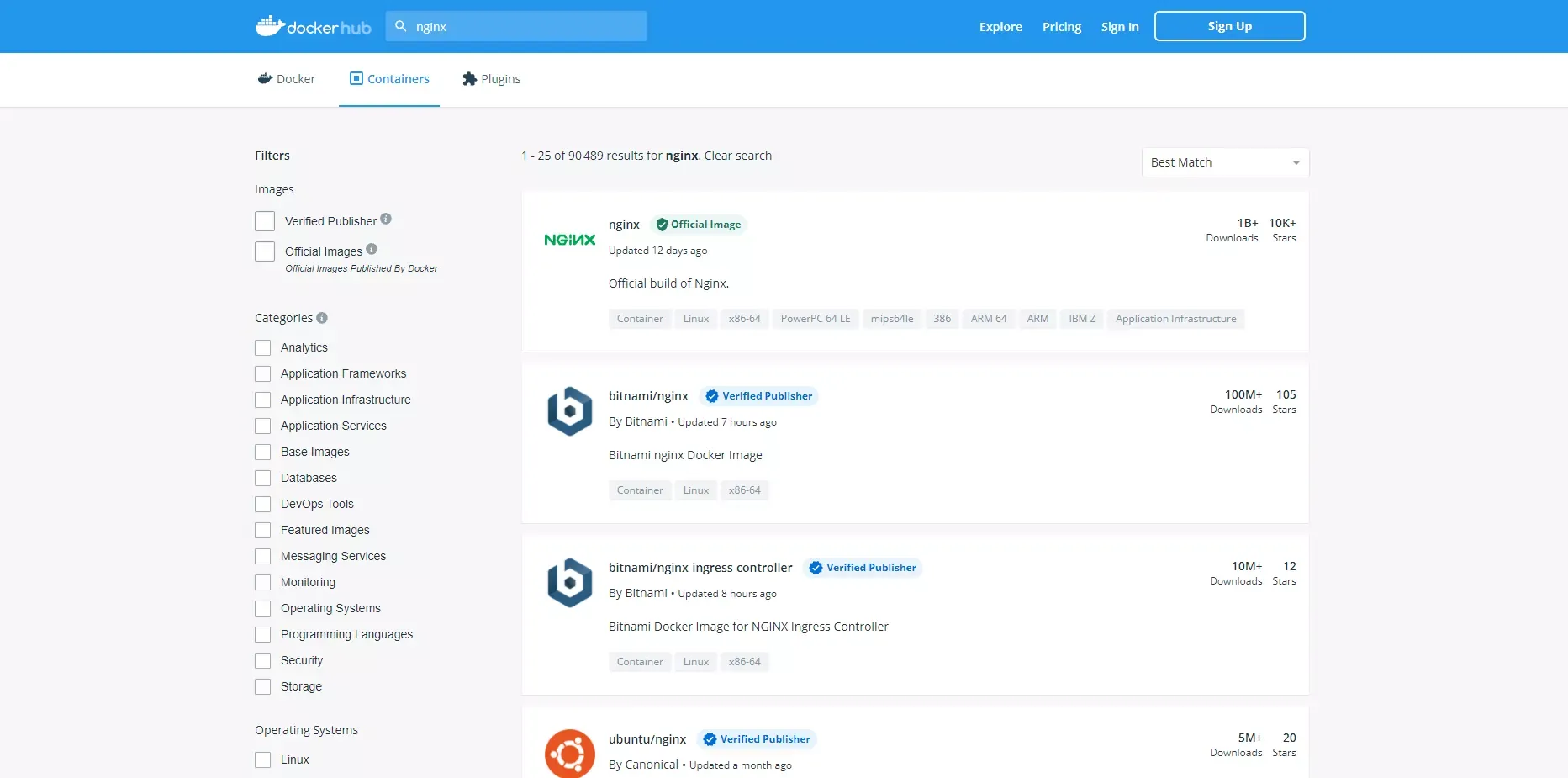
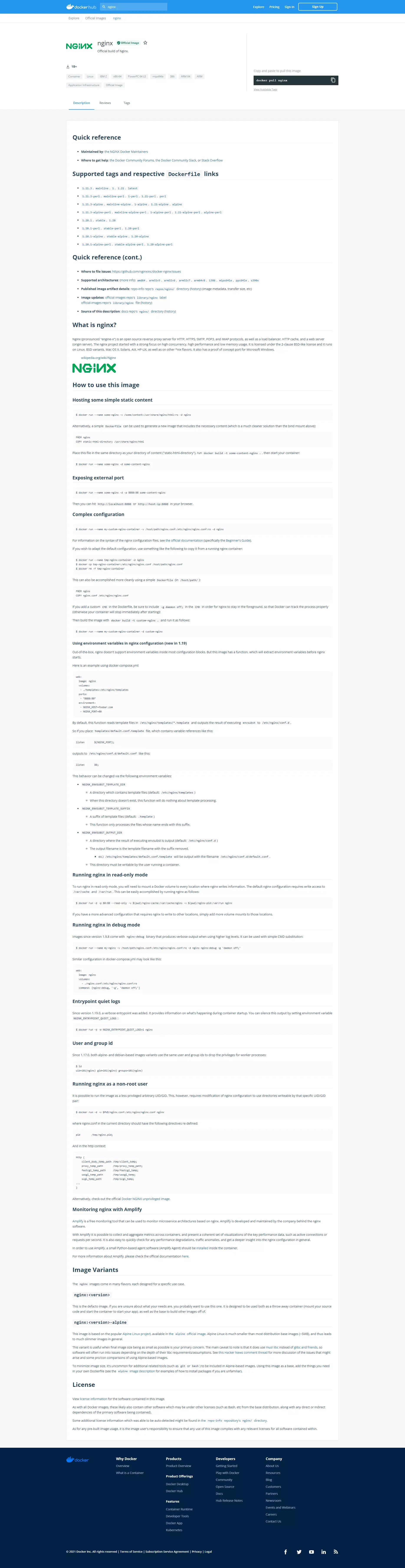
The Docker Hub
The Docker Hub is like the Android play store.
It allows us to find container installation images, official or not, as well as their documentation.